 COME
COMEPrepare an existing COME installation for an update
Record the installed version and preserve your account-access method before replacing the package.
Work through this situation
An update decision should begin with a working app and a reason for changing it. Uninstalling first can complicate account access and does not prove that another file is newer or compatible.
What to check and why
Before changing a working app, note its installed version and confirm that you can use the legitimate account-access method. An update should have a known starting point and an identifiable offered replacement. A page that merely repeats a Download button has not yet shown what would change.
Use Check Update and read the offered release details. If Android rejects the package, preserve the exact message and the existing installation while investigating. Removing the app first can discard useful local state without explaining the error. Account history, device storage and an installer file are separate things, so avoid clearing one as an unexplained fix for another.
Recognise the relevant screen
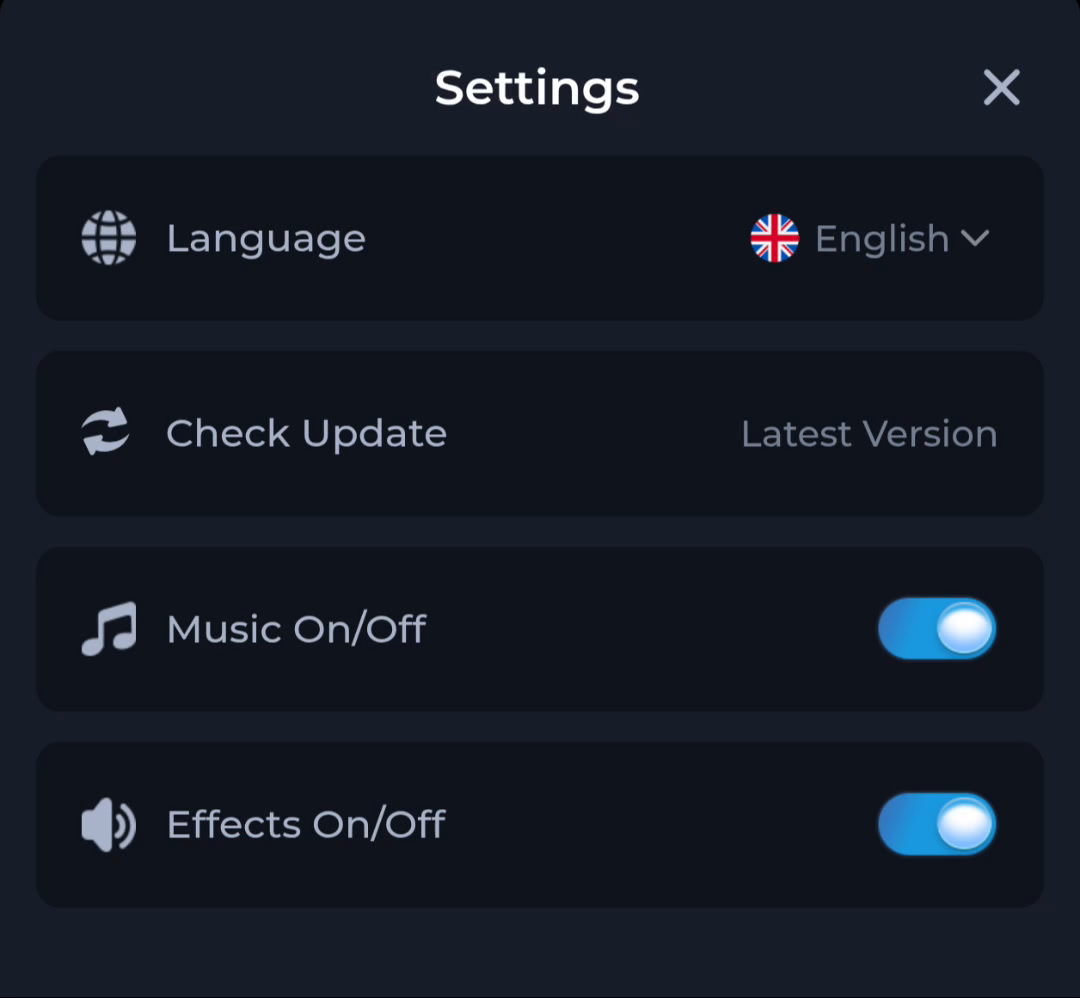
The Settings screen places Check Update beside separate language and audio controls. Use the update entry for its specific purpose rather than treating every nearby label as release information.
Identify the exact device stage
A completed browser download says that a file was saved. Android separately decides whether it can install the package, and the app separately handles its first loading and account access. Keep Play Protect active and read the full device message. A working installation is worth preserving while you investigate a different release or an unexplained error.
What a completed answer looks like
You know the present version, the intended replacement and how to return to the existing account.
Continue from the stage you have actually confirmed. Preserve the exact message when a step remains unresolved.
Choose another specific COME guide